By the PrototypeVerdict Test Team · Tested: Oct 29, 2026
Logins and saved data are where AI-built apps go from “demo” to “real,” and where most of our test problems happened. On Oct 29, 2026 we built the same client portal, with sign-up, an admin view and file uploads, in Lovable, Bolt, Base44 and Softr. This guide covers what each tool set up for us, the first-admin problem, the security-rule error that cost us 84K tokens, and the one check you must run before anyone else logs in.
New to all this? Start with vibe coding for beginners.
Quick verdict
Our verdict
| Easiest | Base44: database, logins and an admin worked with 0 fixes, and a second client account was kept out of the admin view |
| Best if you want your code | Lovable: backend set up automatically; passed the second-account check; needed one message to create the first admin |
| Free | Bolt Free: real database and logins with no card, but a login fix (~84K tokens) and a manual admin edit. Second-account check not run |
| Avoid for logins on its cheapest plan | Softr Basic: plan limits switched off its user groups, so a test client saw everything |
| Must-do check | Sign up as a second, non-admin user and try to see other people’s data |
Do you need login and a database at all?
You need a database if anything must still be there tomorrow, on another device, or for another person: form submissions, invoices, sign-ups. You need login if different people should see different things.
You might not need either for a simple information page. But watch out: Lovable’s invoice tracker passed our “still there after a refresh” test while storing data only in the browser (localStorage). On another web address it showed $0.00. If data matters, say “save everything in a real database” in your first prompt.
What each tool set up for us
| Lovable (Pro) | Bolt (Free) | Base44 (Builder) | |
|---|---|---|---|
| Backend | Lovable Cloud, set up automatically with no extra cost prompt | Bolt Database (Supabase-backed), no card or outside account | Built-in database and users |
| Sign-up rules we saw | Email confirmation required; example.com addresses rejected | Email and password sign-up worked after one fix | Disposable emails rejected (“Disposable email detected”); 6-digit email code required |
| File uploads | Saved | Saved, with a download link | Saved to private file storage |
| First admin | 1 fix message | Set by hand in the Database tab | Automatic in preview (owner is admin) |
| Security-rule errors | None | 1 (recursive rules, 500 error) | None |
| Second-client check | Passed | Not run | Passed |
| Users panel | Add/delete users, sign-in method toggles, “Disable sign-up”; no role editor | Not checked | Invite by email or CSV with a role, change roles, export users |
Source: our Oct 29, 2026 test logs. Lovable says its backend “utilizes Supabase’s open-source foundation” and that you can connect your own Supabase project instead (Lovable Cloud docs); we didn’t test an outside Supabase project. Bolt says connecting your own Supabase needs a paid plan (Bolt FAQ).
Step 1: ask for login in your first prompt
This is the login part of our portal prompt (full prompt in our prompt library):
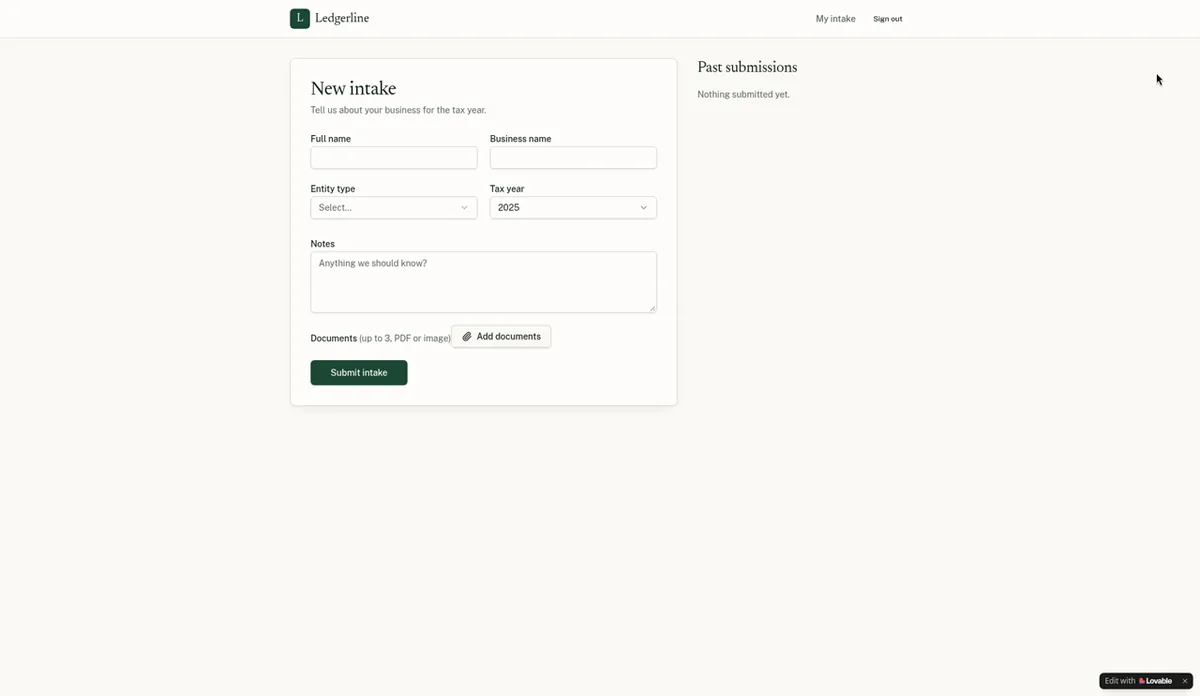
Clients can sign up and log in with email and password. After logging in, a client fills out an intake form… Clients can see their own past submissions and their status. A separate admin view lists all submissions in a table with a status dropdown (New, In review, Complete) that the admin can change.
It got us sign-up, login, “own submissions only” and an admin view in Lovable, Base44 and (after a fix) Bolt. Two lines we’d add next time, both untested:
- “The first account that signs up is the admin; every account after that is a client.”
- “Save everything in a real database, not in the browser.”
More on putting the whole spec in your first message: how to write prompts for AI app builders.
Step 2: set up the first admin
Our prompt said there’s an admin, but not who. Here’s what each tool needed:
- Lovable: the admin page said “Admins only,” with no way to become one. One message fixed it: we quoted the page’s text, said we couldn’t become an admin, and asked Lovable to add our account to the admin role and put an Admin link in the menu. The exact wording is in the fix messages we sent. Lovable’s Users panel has no role editor, so later role changes go through the chat too.
- Bolt: no built-in way. We opened the Database tab, found our user’s row and set role = admin. It took no tokens, but it’s a step a beginner may not find.
- Base44: nothing to do. The preview runs as the app owner, who is admin. Later, Dashboard > App Users lets you invite people with a role and switch users between admin and user.
Step 3: watch for the email-confirmation gotcha
In Lovable, new users had to confirm their email. The confirmation link landed on a blank /portal page; signing in again at /auth worked. If you search “Lovable error verifying email,” this may be what you’re seeing. Ask the AI to “send users to their dashboard after email confirmation, with a sign-in button if they’re signed out” (untested wording). Base44 used a 6-digit email code instead, which worked.
Step 4: understand security rules (in plain English)
Apps built on Supabase, including Lovable’s and Bolt’s built-in backends, protect data with row-level security: rules attached to each table that say who can read or change each row (“a client can read only rows where the client is them; an admin can read all rows”).
What went wrong on Bolt: the rule that checked “is this user an admin?” looked up the same profiles table it was protecting, so the rule kept calling itself (a recursive policy). The result: a 500 error, and login stuck on the login screen. One fix message solved it. Bolt moved the admin check into a separate secure database function (a SECURITY DEFINER function called is_admin()). That one fix used about 84K tokens, about 28% of Bolt Free’s daily cap.
Two rules of thumb:
- Never accept a “fix” that turns security rules off. It would let any signed-in user read everyone’s data.
- If a login works for the admin but errors for everyone else (or the other way round), suspect the security rules first.
For other errors, see how to fix it when the AI breaks your app.
Step 5: test it like a stranger (the second-account check)
This is the most important step. Sign up as a second, non-admin user and check:
- There’s no Admin link in the menu.
- Typing the admin page’s address directly doesn’t show the admin table.
- You see only your own submissions, not anyone else’s.
- Signed out, the admin page sends you to the login page.
| Tool (plan) | Result |
|---|---|
| Lovable (Pro) | Passed: no Admin link, “Admins only” on /admin, only own submissions |
| Base44 (Builder) | Passed: no Admin link, “Firm staff only” on /admin, only own submissions; signed-out guest sent to login |
| Bolt (Free) | Not run: we haven’t done this check on Bolt yet |
| Softr (Basic) | Failed: a test client could open the admin page and see all submissions (checked with Softr’s “Preview as”) |
Use test inboxes, not real people. Our checks were in unpublished previews, so repeat them on the live app after publishing.
Want the full portal build? See our Lovable tutorial for beginners and Base44 tutorial for beginners.
If you build a login app on Bolt (bolt.new), run this check yourself, because we haven’t run it on Bolt yet.
Step 6: run the security scan
- Lovable: the free deep scan took about 2 minutes and found no issues in our portal, with Lovable’s note that it can’t catch every risk. Separately, its dependencies panel flagged 12 known issues but gave no per-package details. Lovable also runs a quick scan automatically when you publish.
- Base44: the free “Check Security” scan ran five checks in about a minute, used no credits, and flagged 7 high-severity issues in two third-party packages, with a “Fix all” button we didn’t use.
- Bolt: we found no scan button in the project settings. Bolt’s docs describe a database security check on all plans (database icon, then Security) and a full project audit in the Publish menu on paid plans (Bolt security docs). We haven’t run either.
Step 7: getting your data and code out
| Data export | Code export | |
|---|---|---|
| Lovable | CSV export took 1 build message (1.5 credits) | “Download codebase” ZIP (100 files) on a paid plan; Git sync with GitHub, GitLab or Bitbucket |
| Base44 | CSV export took 1 message (1.81 message credits); App Users can be exported to CSV | “Export project as ZIP” (108 files) on Builder and up; Base44’s docs say exported code still relies on its backend |
| Bolt | CSV export untested (out of tokens) | Download gave a 30-file ZIP on Free, including database migration files |
| Softr | “Export to CSV” from a data table worked on Basic | No code export |
A note on Lovable credits: the Lovable costs in this guide come from the credit balance. Lovable’s credit counter was inconsistent in our test, so we didn’t rely on its per-project usage page: for the client portal it listed 6 credits, while the balance dropped by 1 and the day’s 5 free daily credits were used up.
Comparing backends? See Base44 vs Lovable, Base44 vs Bolt, the Base44 review and the Lovable review.
What we haven’t tested
- Google, Apple, Microsoft or SSO sign-in. Lovable’s Users panel showed these as options (email was on), but we only tested email and password.
- Two-factor authentication. Softr lists it on a higher plan; we didn’t check the others for this page.
- Connecting your own Supabase project to Lovable or Bolt.
- Bolt’s second-account check and Bolt’s CSV export.
- The 3-document upload limit in our prompt, in any tool.
- Logins on a published app (every check was in preview).
Add login and a database FAQ
How do I add login to a Lovable app?
Ask for it in your prompt: “Clients can sign up and log in with email and password.” In our test, Lovable set up its Cloud backend automatically and required email confirmation. Say who the admin is up front, because Lovable needed a fix message to create the first one.
Does Bolt have a built-in database?
Yes. Bolt Database handled data, logins and file storage in all three of our test apps on the free plan, with no card or outside account. Bolt says connecting your own Supabase database needs a paid plan.
Does Base44 include a database and user logins?
Yes. Our Base44 portal saved data in its built-in database with logins and 0 fixes, and Base44’s pricing page lists a database and authentication on every plan, including Free.
How do I make myself the admin?
It depends on the tool. In Lovable we asked in one chat message, in Bolt we set role = admin by hand in the Database tab, and in Base44 the app owner was already the admin.
What is row-level security, and why does it matter?
It’s the set of database rules that decide which rows each signed-in user can read or change, such as “a client sees only their own submissions.” Lovable’s and Bolt’s built-in backends both use it. In our Bolt test, a rule that checked itself broke login with a 500 error. Fix rules like that; never switch them off.
Why is the page blank after email verification in Lovable?
In our test, Lovable’s confirmation link landed on a blank /portal page. Signing in again at /auth worked. You can ask Lovable to send users to their dashboard after confirming, but we haven’t tested that wording.
How do I know clients can’t see each other’s data?
Sign up as a second, non-admin user and check for an Admin link, open the admin page by its address, and look at whose submissions you can see. Lovable and Base44 passed this check in our test; Softr Basic failed and we didn’t run it on Bolt.
Update history
- October 29, 2026: First published. Results from our Oct 29, 2026 test round (Lovable Pro, Base44 Builder, Bolt Free, Softr Basic).